
Codex Client
Scope
This guide applies to Codex desktop clients, Codex IDE extensions, and Codex
clients that read the local ~/.codex configuration directory. After setup,
Codex will call models through the 88API relay.
Before You Start
- Sign in to 88API.
- Make sure your account has balance.
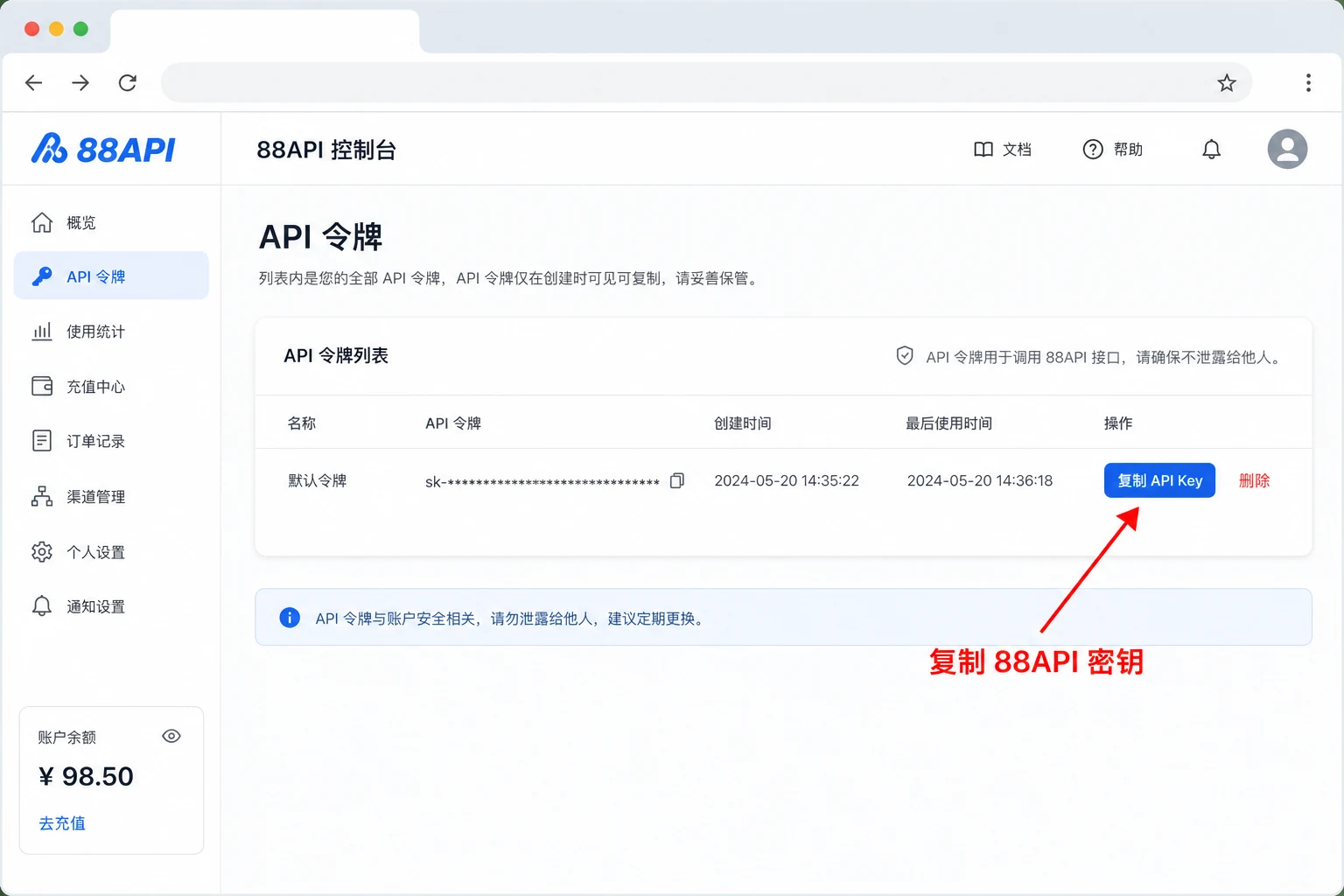
- Create an API key in the 88API console.
- Install the Codex client or the related IDE extension.
How It Works
Codex clients read configuration from the local Codex directory:
| File | Purpose |
|---|---|
~/.codex/config.toml | Sets the model, provider, API endpoint, API key, and protocol |
~/.codex/auth.json | Compatibility file for clients that still read it |
Use the following values for the 88API relay:
| Option | Value |
|---|---|
| API base URL | https://88api.ai/v1 |
| API key | The key created in the 88API console |
| Model | gpt-5.5 |
| Protocol | responses |
One-Click Setup
Windows
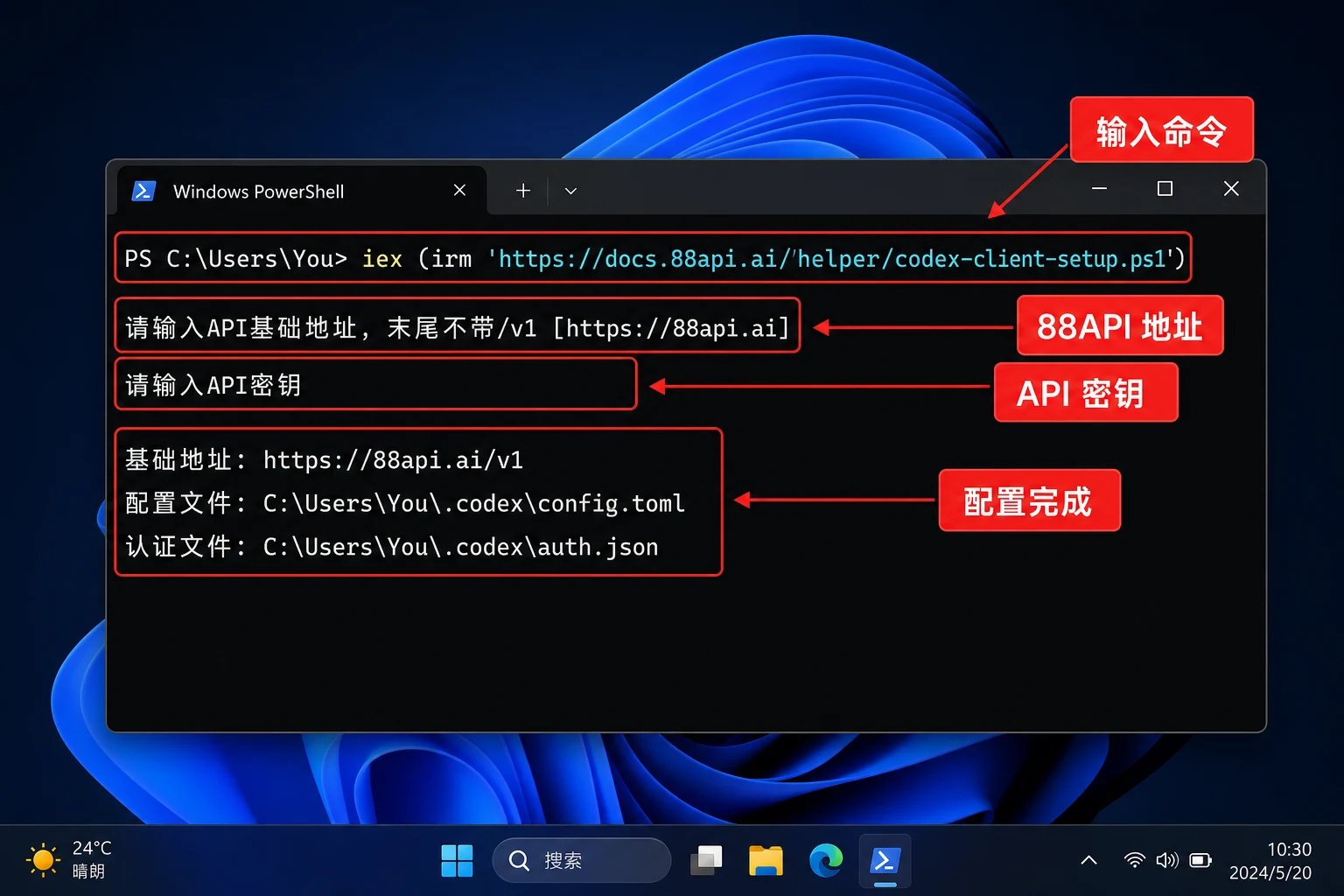
Open PowerShell and run:
Configure Codex Client
iex (irm 'https://docs.88api.ai/helper/codex-client-setup.ps1')
Enter the following when prompted:
- API base URL: press Enter to use the default
https://88api.ai - API key: paste the key created in the 88API console
The script writes:
%USERPROFILE%\.codex\config.toml
%USERPROFILE%\.codex\auth.json
macOS / Linux
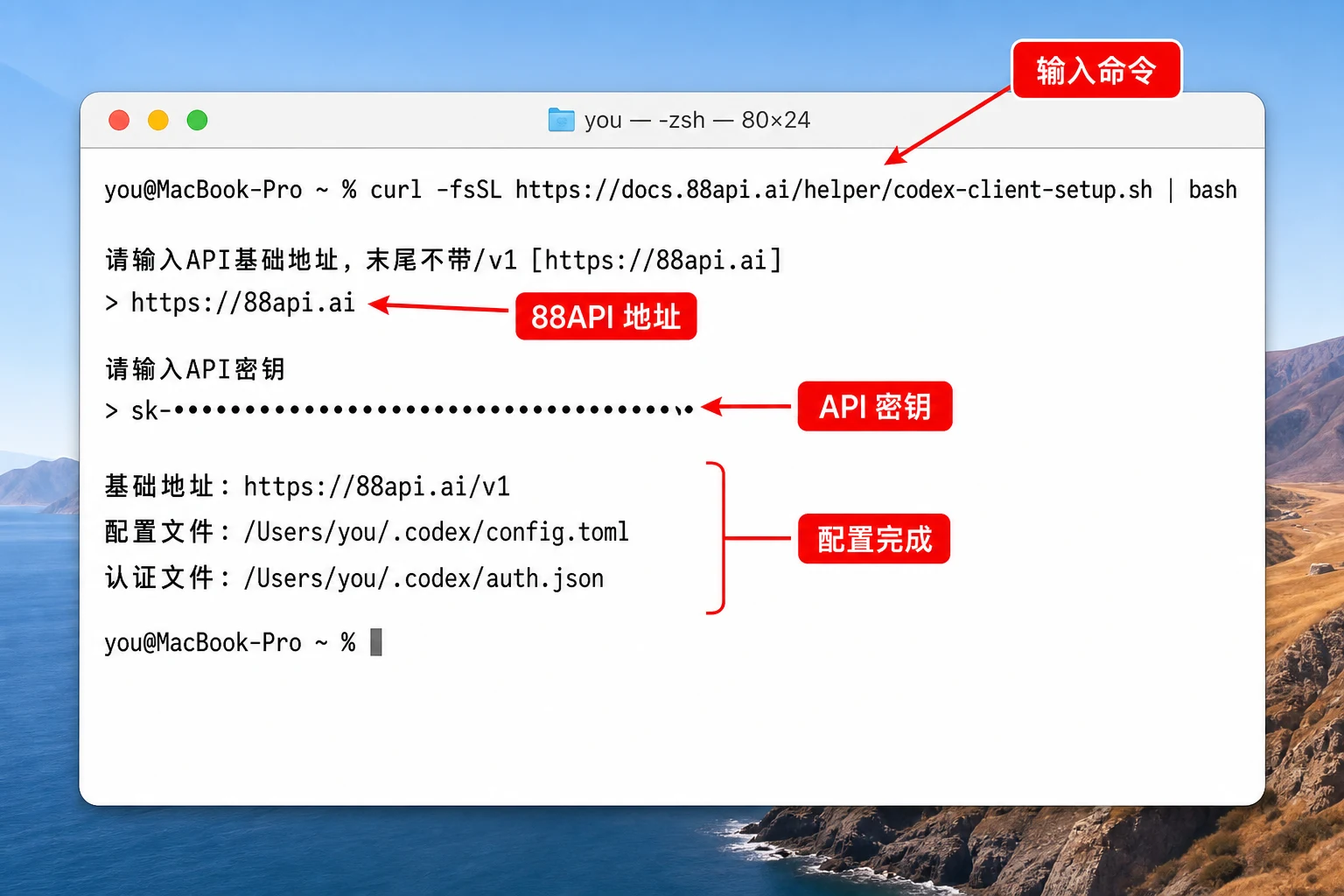
Open Terminal and run:
Configure Codex Client
curl -fsSL https://docs.88api.ai/helper/codex-client-setup.sh | bash
Enter the following when prompted:
- API base URL: press Enter to use the default
https://88api.ai - API key: paste the key created in the 88API console
The script writes:
~/.codex/config.toml
~/.codex/auth.json
Manual Setup
You can also create the files manually.
config.toml
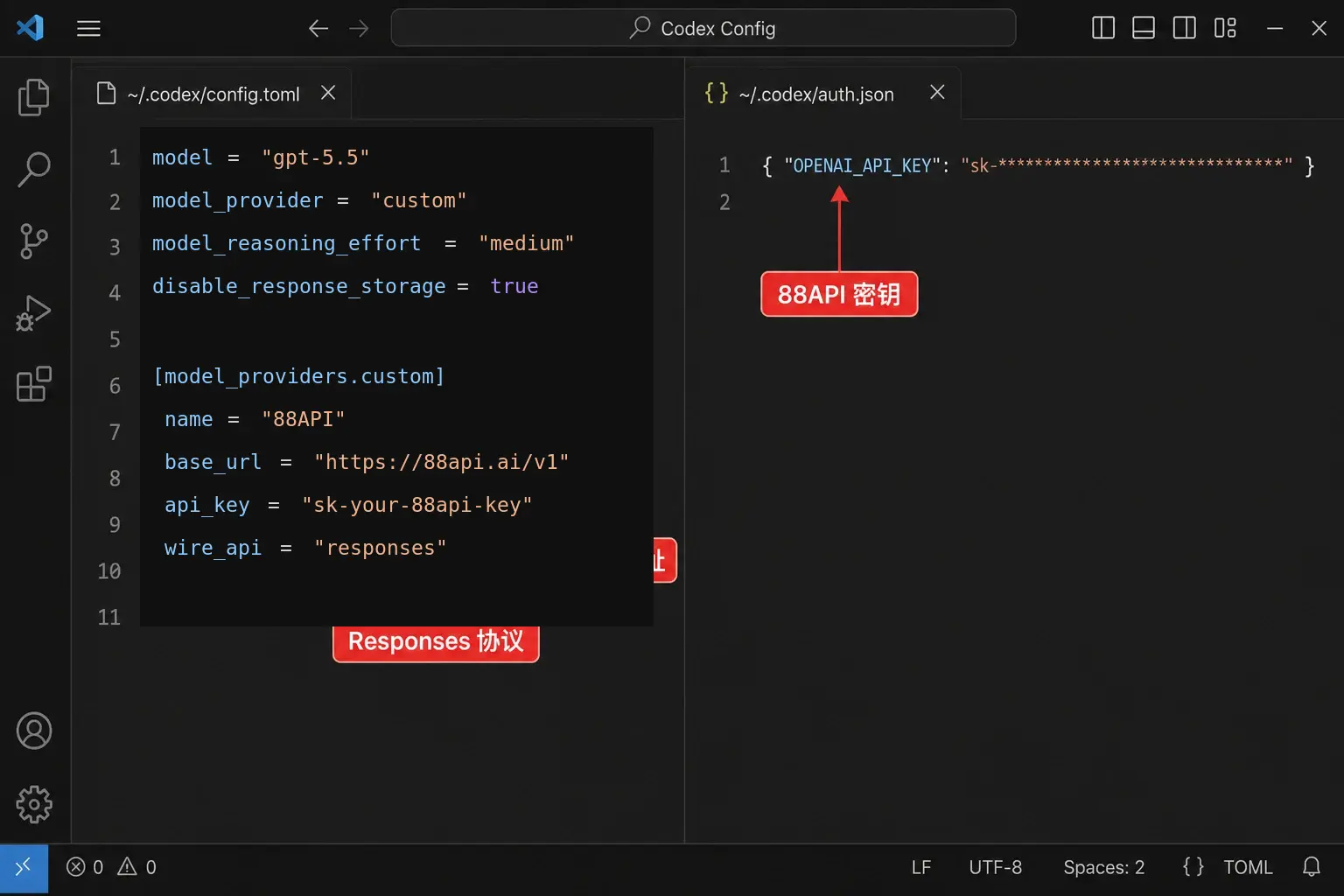
Write this to ~/.codex/config.toml:
model = "gpt-5.5"
model_provider = "custom"
model_reasoning_effort = "medium"
disable_response_storage = true

[model_providers.custom]
name = "88API"
base_url = "https://88api.ai/v1"
api_key = "sk-your-88api-key"
wire_api = "responses"
auth.json
If your client still reads auth.json, write this too:
{
  "OPENAI_API_KEY": "replace-this-with-your-88api-key"
}
Start the Client
After configuration, reopen the Codex client or restart your IDE.
If the client is already running, fully quit and start it again so it reloads
~/.codex/config.toml and ~/.codex/auth.json.
Verify Requests
- Start a simple task in the Codex client.
- Open the 88API console.
- Check Usage Logs for the corresponding request.
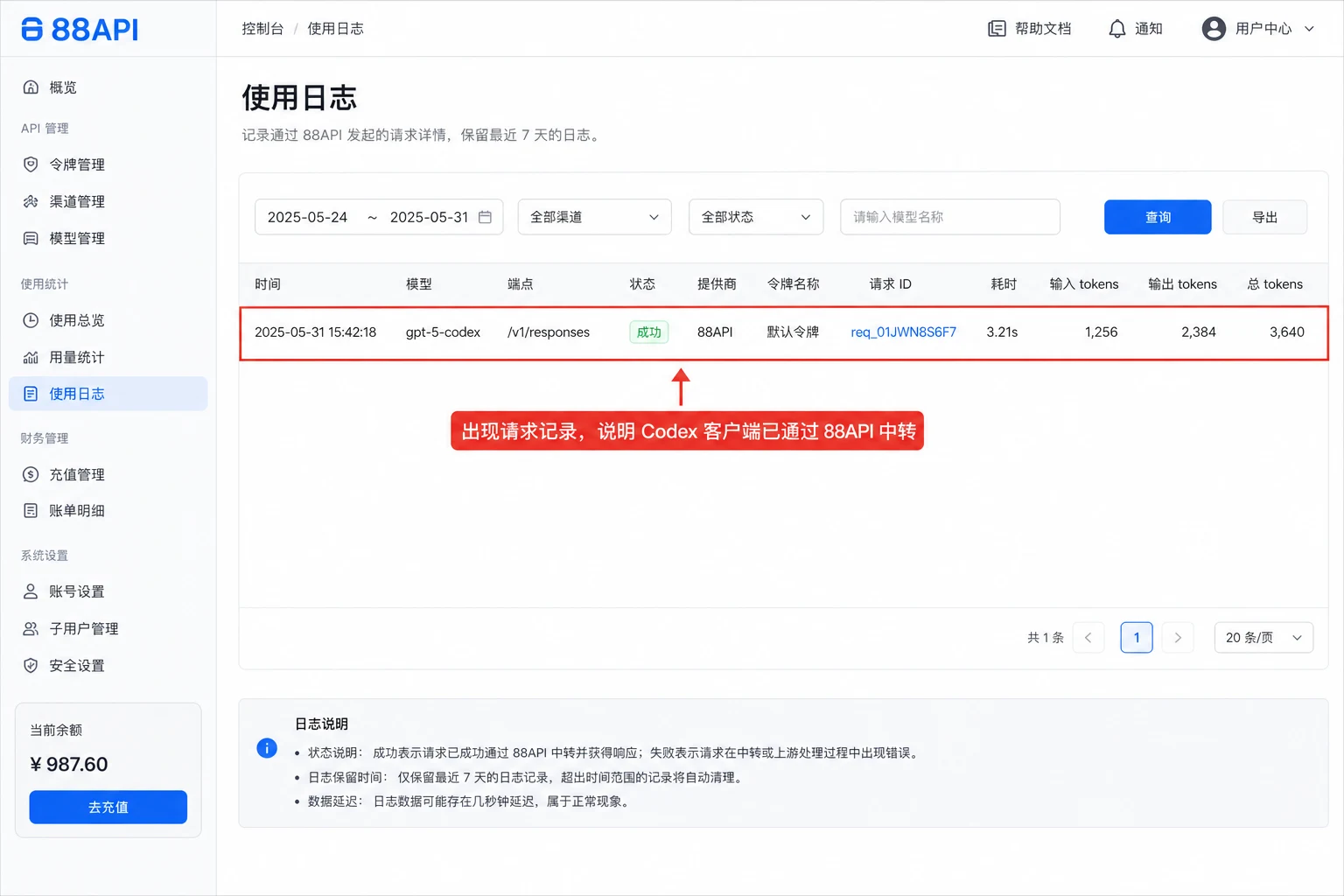
If the request appears in Usage Logs, the Codex client is using the 88API relay.
Troubleshooting
The client still uses the official account
Confirm that the client supports the local ~/.codex configuration. Some
official cloud Codex entries only use ChatGPT account login and do not support a
third-party API endpoint, so they cannot be relayed through 88API.
Authentication failed
Check that OPENAI_API_KEY in auth.json is complete and has no leading or
trailing spaces or line breaks.
Model unavailable
Confirm that your 88API account can use gpt-5.5. If your account uses a
different Codex-compatible model, update the model field in config.toml.
Changes do not take effect
Fully quit the Codex client or IDE and reopen it. If needed, remove old official login cache and run the one-click setup script again.