
Factory Droid CLI


Project Introduction
Command Line: Automation Across the SDLC. Script and parallelize Droids at massive scale for CI/CD, migrations, and maintenance. From automated code review to self-healing builds, integrate agents into every phase of development.
Droid CLI is a command-line tool developed by Factory AI, designed to operate as an AI software engineering agent. It allows users to interact with various large language models via the terminal, build, debug, and refactor code, and even create complete applications.
- Official Homepage: https://factory.ai/product/cli
- Official Documentation: https://docs.factory.ai/cli/getting-started/quickstart
- Installation Method: See the tutorial below on this page
Demonstration
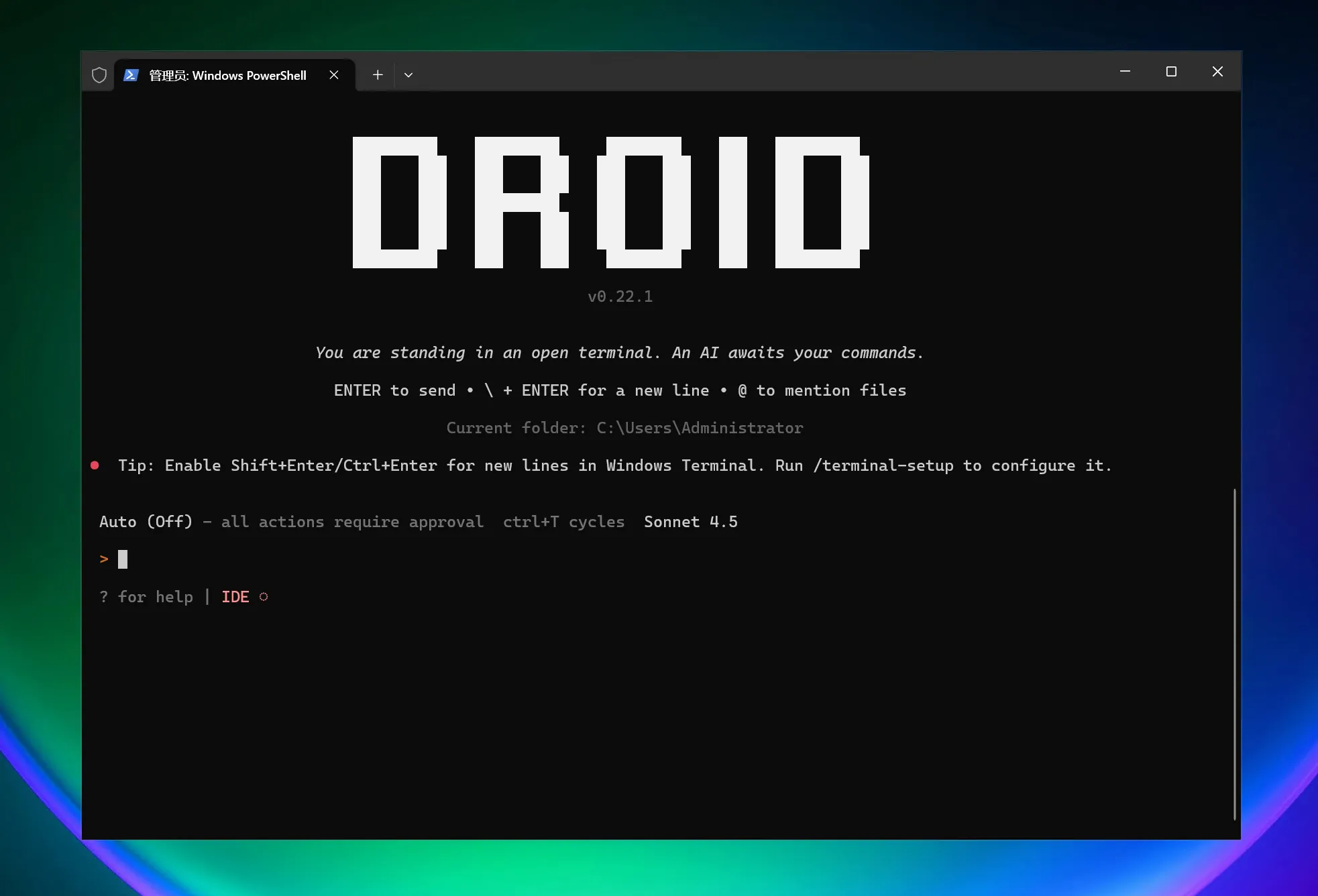
Features
| Category | Feature | Value/Capability | Example/Notes |
|---|---|---|---|
| Quick Start & CLI | 30-second installation; launch droid interactive session in the project directory; supports macOS/Linux and Windows | Rapid integration into the current project, no new tools required | Windows Installation: irm https://app.factory.ai/cli/windows | iex; Launch: droid |
| End-to-End Feature Development | Full-process automation from planning to implementation to testing; transparent review process | Increase delivery speed while maintaining human control | Native diff viewing and approval workflow (see "Transparency and Control") |
| Deep Codebase Understanding | Integrates shared organizational knowledge across codebases, documentation, and issue tracking; context-aware, performance improves over time | More accurate suggestions and changes | Continuously leverages knowledge across repositories and documentation |
| Engineering System Integration | Natively integrates tools like Jira, Notion, Slack, etc.; development work stays synchronized with team processes | Reduce tool switching and information silos | "etc." indicates more integrations |
| Production-Grade Automation | Workflows reusable locally and in CI/CD; built-in enterprise-grade security and compliance | Consistency and auditability | Adapts to pipelines and enterprise environments |
| Enterprise Capabilities | Private deployment options, SOC-2 compliance, air-gapped environments | Meets security and compliance requirements | Prioritizing security and quality |
| Existing Tool Enhancement | Works in terminals, IDEs, and existing development environments; no need to switch editors or learn new interfaces | Maintain existing work habits, low migration cost | Deep integration with familiar tools |
| Transparency and Control | Every decision is visible and reviewable; maintain full oversight over code changes; native diff viewing and approval workflow | Reduce risk, enhance controllability | Audit-friendly, traceable |
| Model Flexibility | Not locked to a single AI provider; select the best model per task; consistent organizational behavior and memory | Optimal choice between performance and cost | Supports multi-model routing |
| Next Steps and Resources | Quickstart, Common Use Cases, IDE Integration, Configuration, AGENTS.md | Facilitates implementation and practice | See page “Next steps/Additional resources” |
AI Model Configuration Method
Windows Graphical Guide
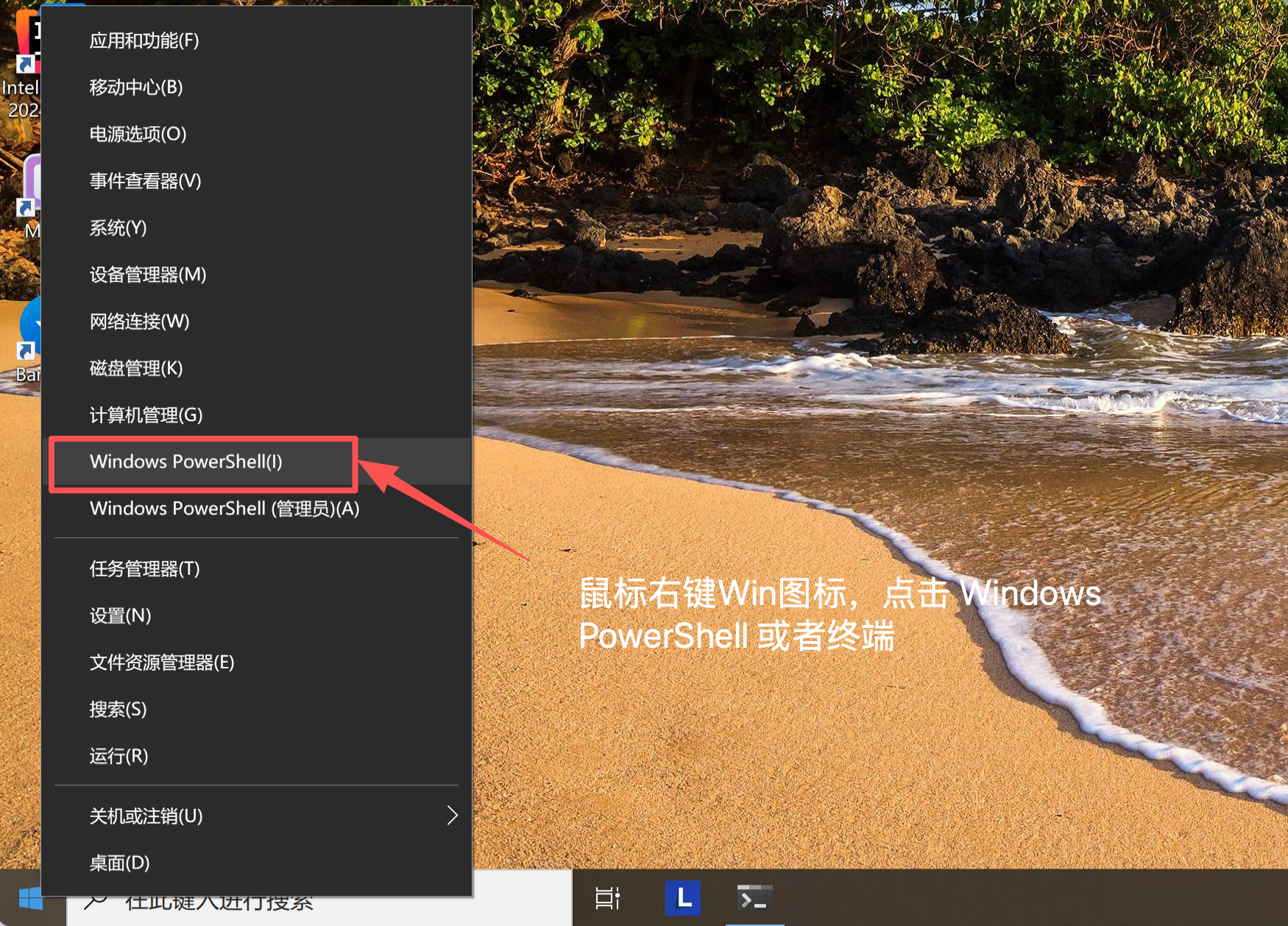
1. Open Terminal
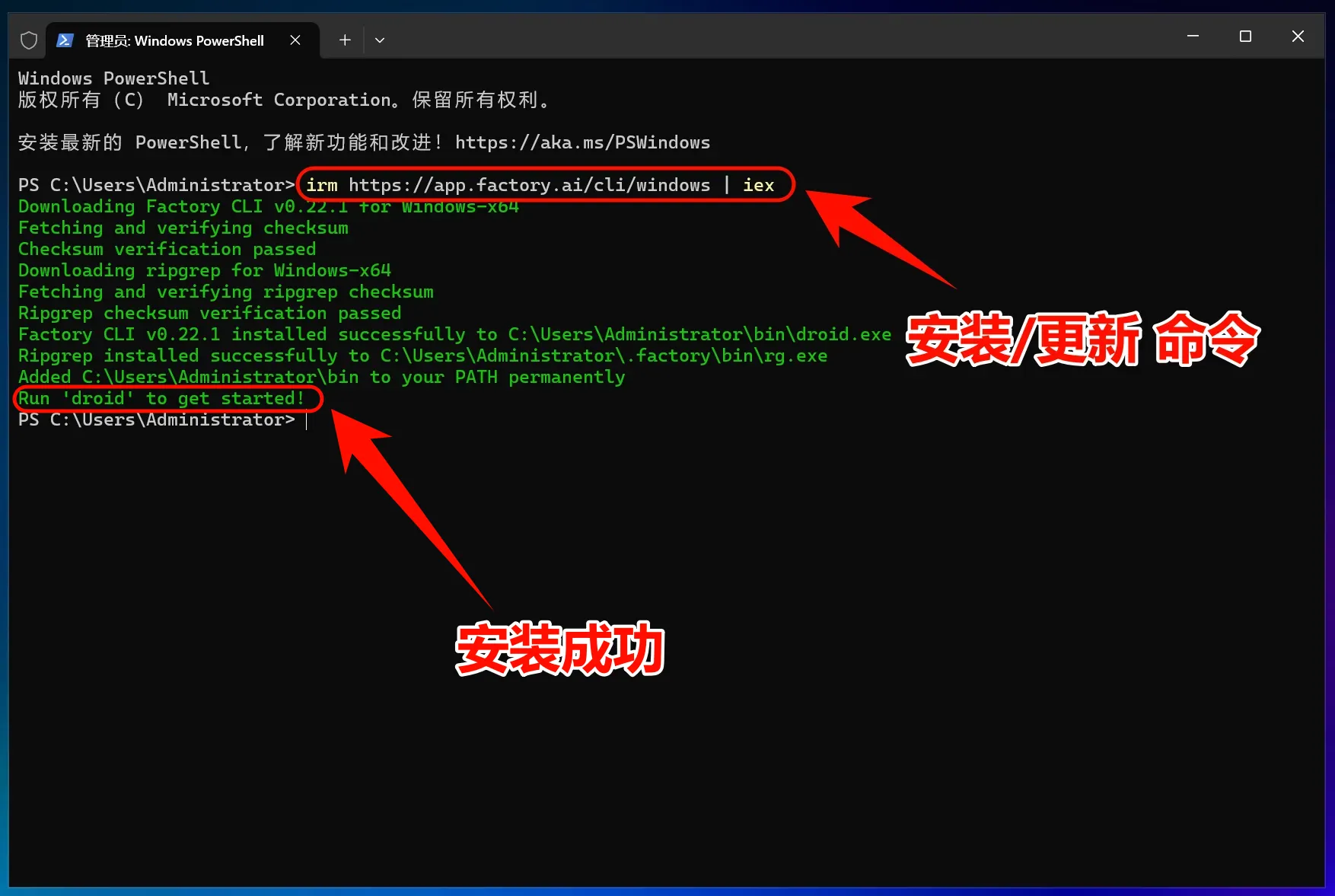
2. Install Factory Droid CLI
Official one-click installation command:
One-Click Installation Command
irm https://app.factory.ai/cli/windows | iex
3. Modify Configuration File
Droid CLI requires modifying the configuration file to use third-party APIs.
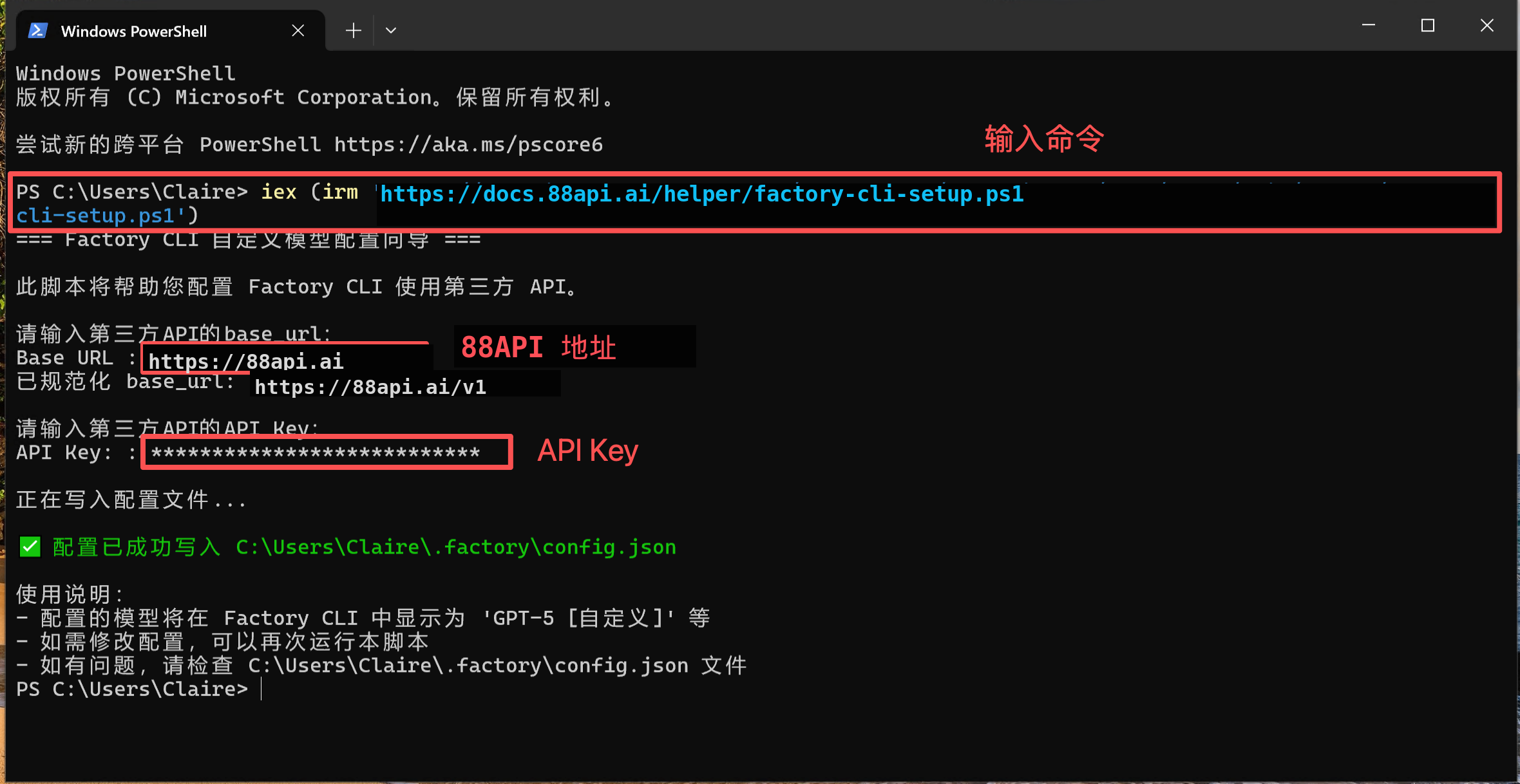
Modify Environment Variables
iex (irm 'https://docs.88api.ai/helper/factory-cli-setup.ps1')
4. Start Using Droid CLI
You can now start using Droid CLI!
Launch Droid CLI
Launch Droid CLI directly: # Launch Droid CLI droid Use in a specific
project: # Navigate to your project directory cd C:\path\to\your\project `
Launch Droid CLI droid ` Press Enter to launch Droid CLI
Droid CLI requires users to log in to an official account (free) before use.
5. Windows Common Issues Troubleshooting
Error message
permission denied" during installation" This is usually a permission issue. Try the following solutions:
-
Run
PowerShellas administrator -
Or configure
npmto use the user directory:npm config set prefix %APPDATA%\npm
PowerShell Execution Policy Error
If you encounter execution policy restrictions, run: Set-ExecutionPolicy -ExecutionPolicy RemoteSigned -Scope CurrentUser
macOS/Linux Graphical Guide
1. Install Droid CLI
Install Droid CLI
Open the terminal and run the following command: curl -fsSL https://app.factory.ai/cli | sh
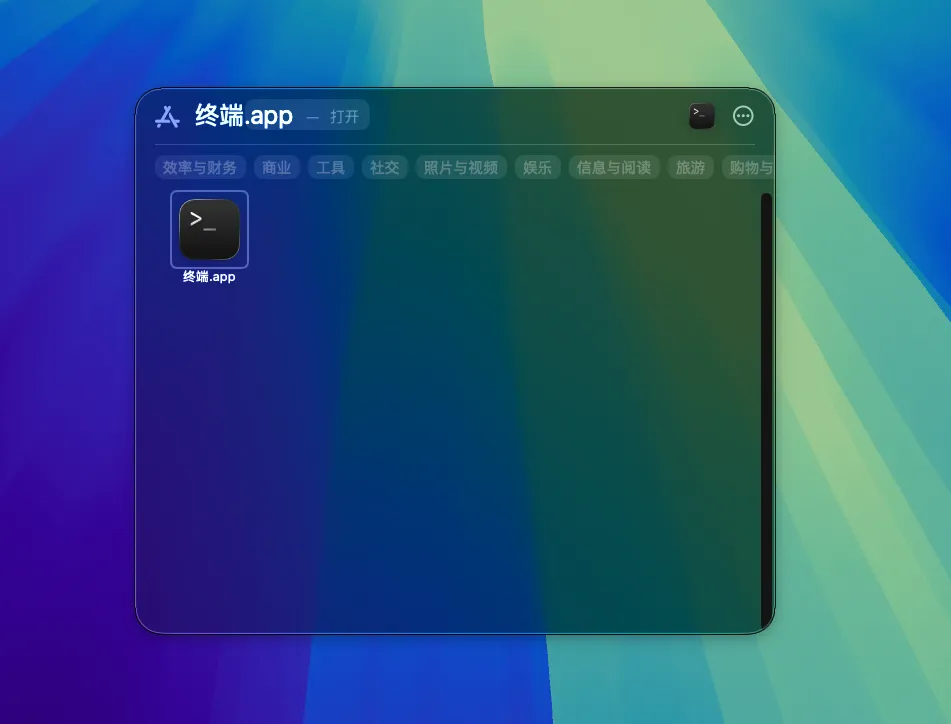
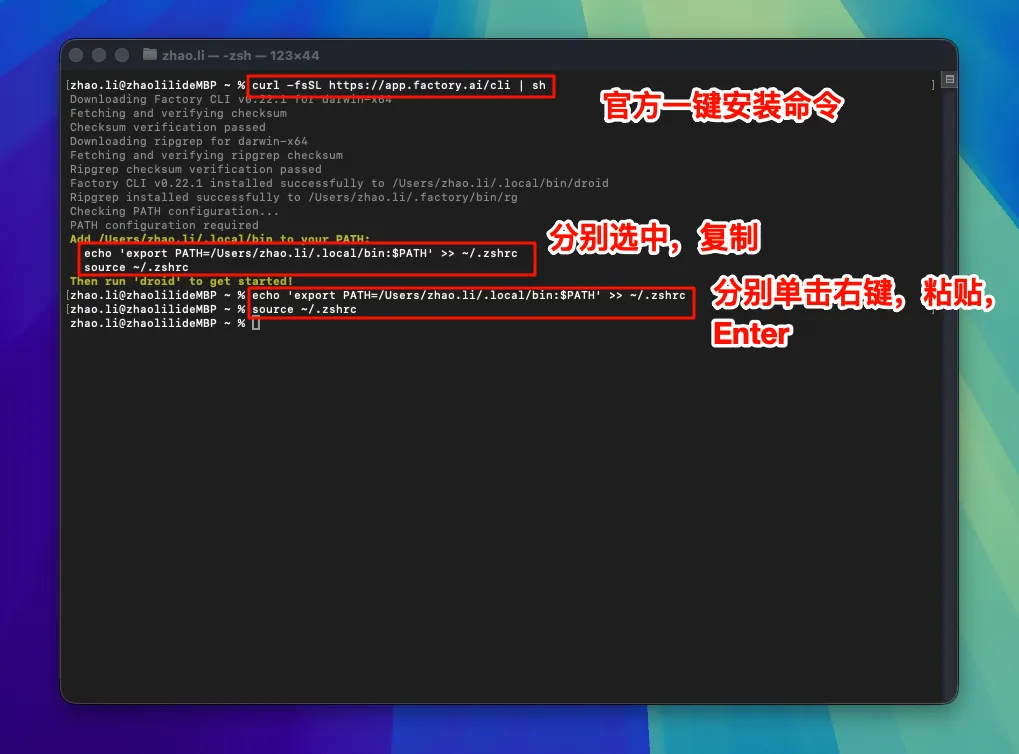
Modify environment variables according to the installation prompts (copy the installation prompt code directly):
For Linux, choose ~/.bashrc or ~/.zshrc as appropriate.
Droid CLI Environment Variables (Example Only)
echo 'export PATH=/Users/修改此处/.local/bin:$PATH' >> ~/.zshrc source ~/.zshrc
2. Modify Configuration File
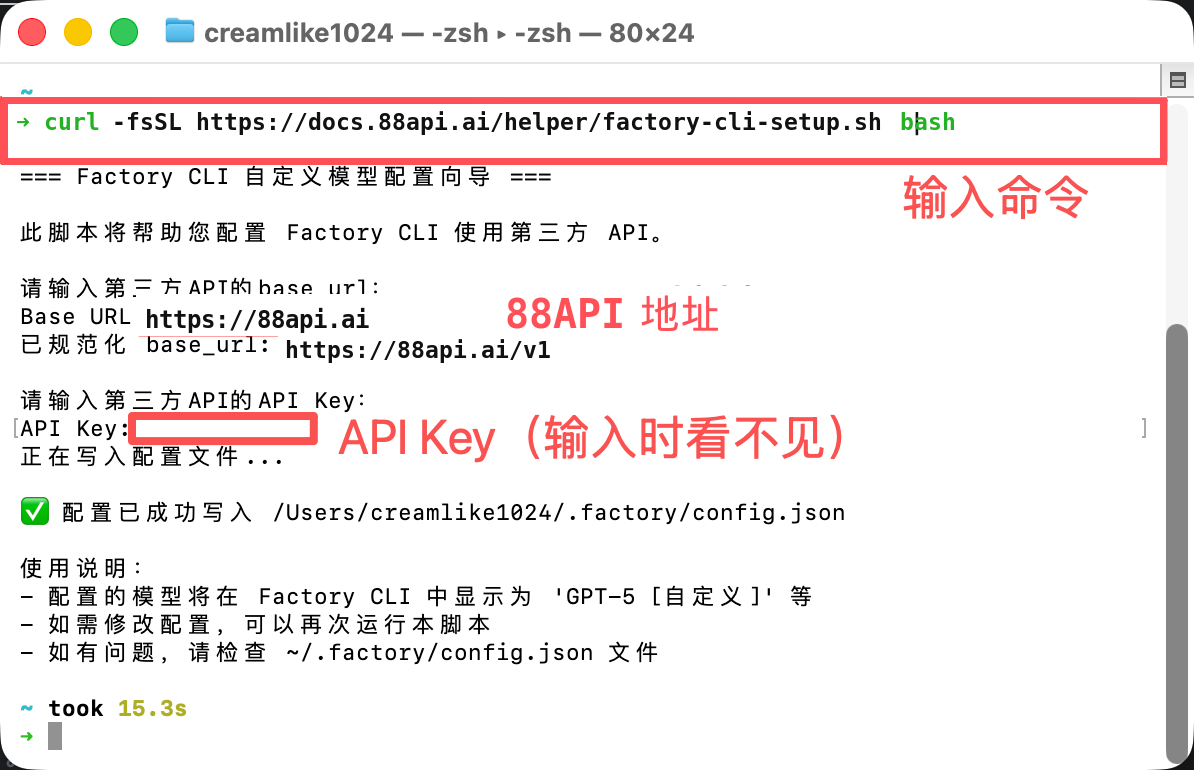
Droid CLI requires modifying the configuration file to use third-party APIs.
One-Click Configuration File Modification
curl -fsSL https://docs.88api.ai/helper/factory-cli-setup.sh | bash
3. Start Using Droid CLI
You can now start using Droid CLI!
Launch Droid CLI
Launch Droid CLI directly: # Launch Droid CLI droid Use in a specific
project: # Navigate to your project directory cd /path/to/your/project # Launch Droid CLI droid Press Enter to launch Droid CLI
Droid CLI requires users to log in to an official account (free) before use.