
LunaTranslator - Open Source GalGame Translator
Chat Settings Option
In the 88API dashboard, under System Settings -> Chat Settings, you can
add the following shortcut option. This allows you to easily configure
LunaTranslator with a single click from the Token Management page:
{ "LunaTranslator": "lunatranslator://llmapi/base64?data={cheryConfig}" }LunaTranslator is an open-source and free GalGame translator dedicated to providing a native-level GalGame gameplay experience.
- Project Repository:
<https://github.com/HIllya51/LunaTranslator> - Documentation:
<https://docs.lunatranslator.org/zh/README.html>
Features
-
HOOK Primarily uses HOOK to extract game text, compatible with almost all common and niche GalGames.
-
In-game Translation Some games support direct in-game translation for an immersive experience.
-
Emulator HOOK For most games on NS/PSP/PSV/PS2, it supports hooking emulators to directly read game text.
-
OCR Features a built-in high-accuracy OCR model and supports many other online & offline OCR engines for flexible text extraction.
-
Rich Translation APIs Supports almost all translation engines, including Large Language Models (LLMs), offline translation, etc.
-
Language Learning Supports Japanese word segmentation and furigana annotation, AnkiConnect, and the Yomitan plugin.
-
Text-to-Speech (TTS) Supports a large number of online & offline text-to-speech engines.
-
Speech Recognition On Windows 10 and Windows 11, Windows Speech Recognition can be used.
Installation
Please download and install from the official documentation: LunaTranslator Docs - Download & Launch & Update
Using 88API in LunaTranslator
LunaTranslator supports integration with locally deployed 88API instances and third-party services built on 88API.
One-Click Configuration
-
In the 88API dashboard, go to
System Settings->Chat Settingsand add the following shortcut option:{ "LunaTranslator": "lunatranslator://llmapi/base64?data={cheryConfig}" }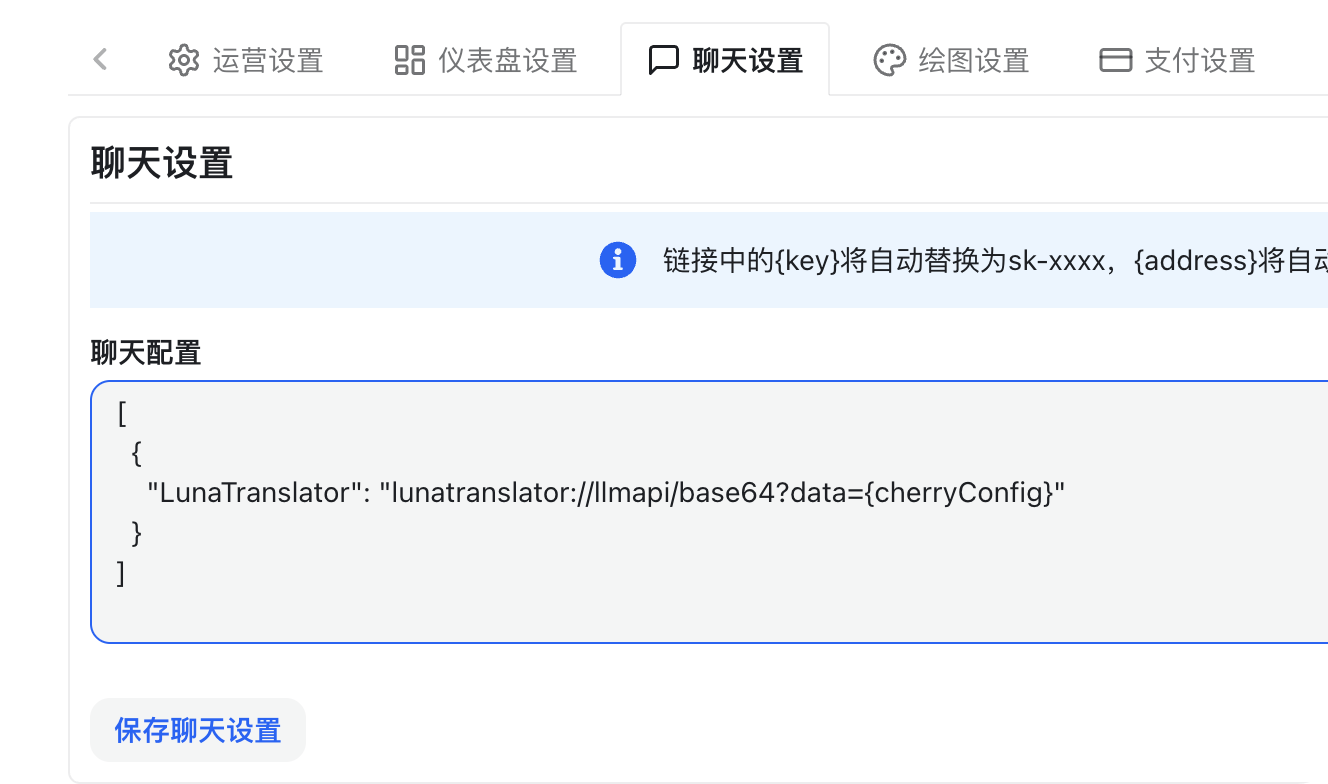
-
In the
88API->Dashboard->Token Managementtab, select the token you want to use in LunaTranslator. Click the dropdown option next to the chat button and selectLunaTranslator. This will redirect you to the LunaTranslator application and automatically configure the API Address and API Key.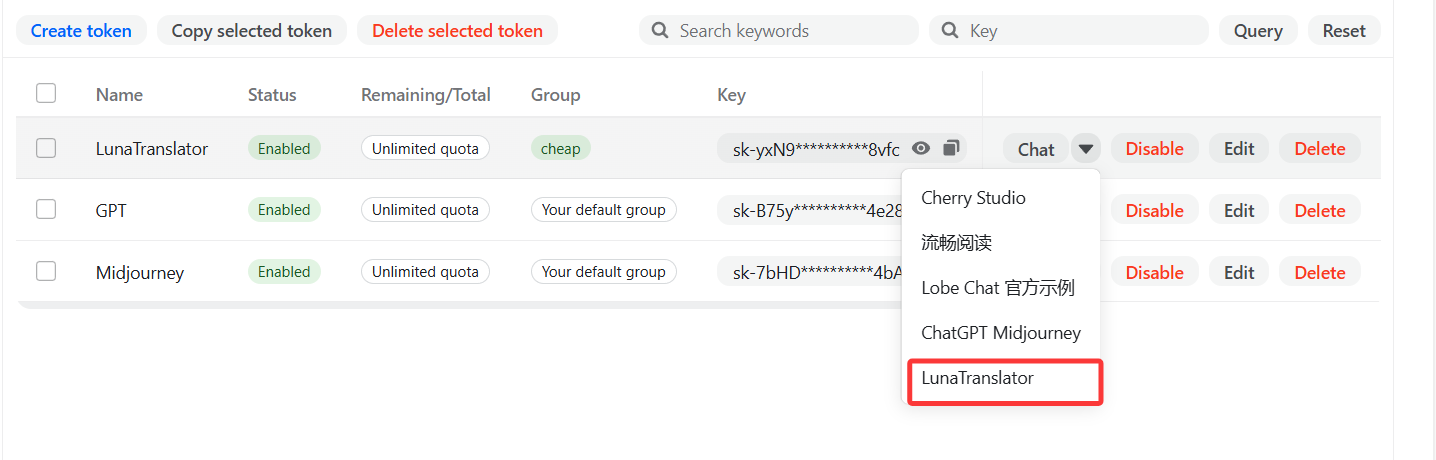
-
In
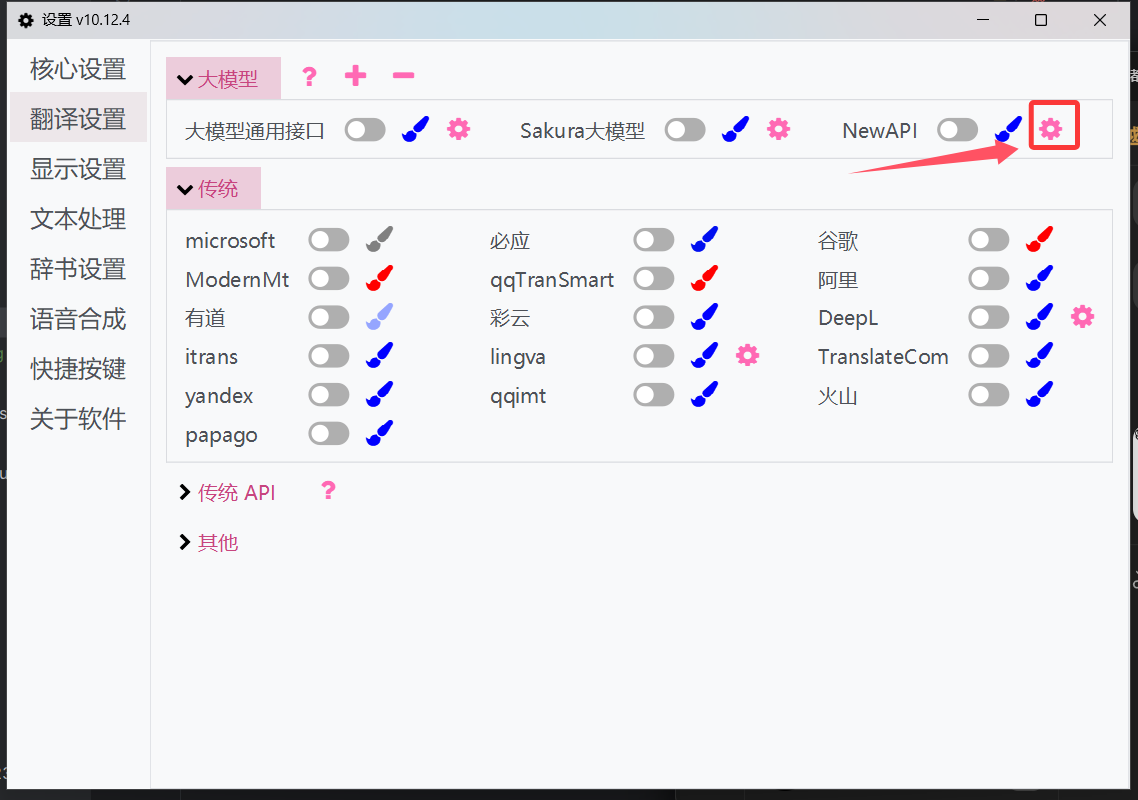
LunaTranslator->Settings->Translation Settings->Large Language Model, a new API configuration will be automatically added. Click the edit button to proceed.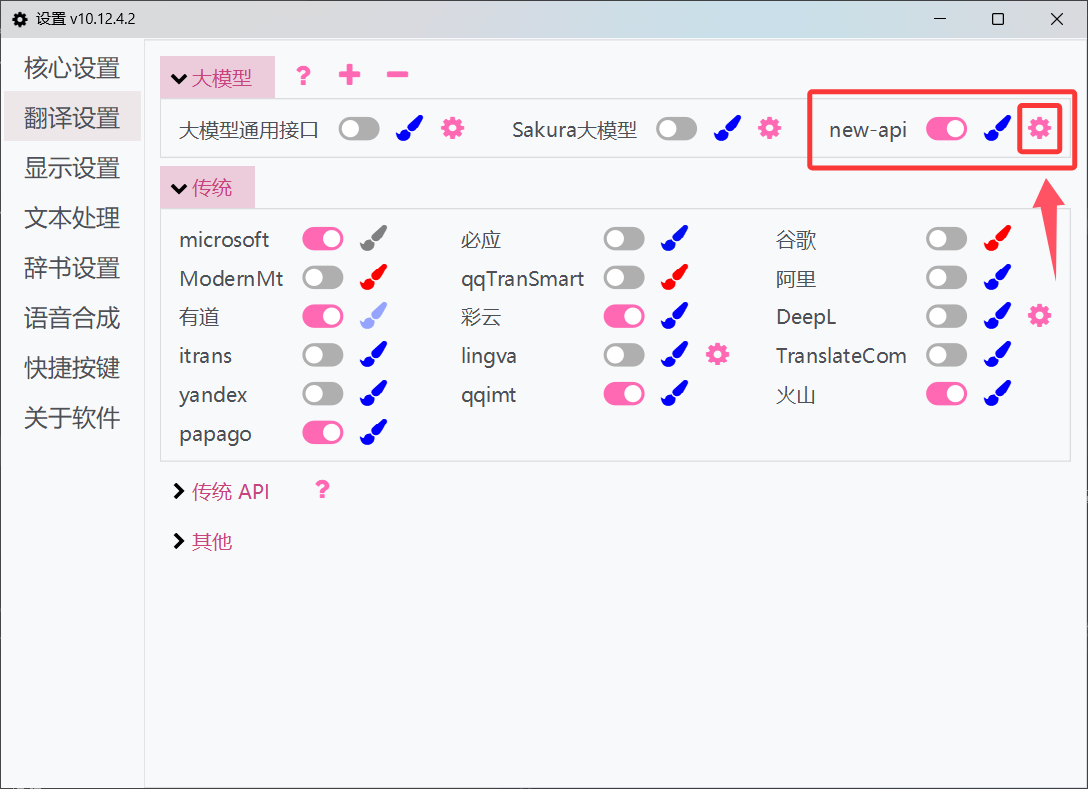
-
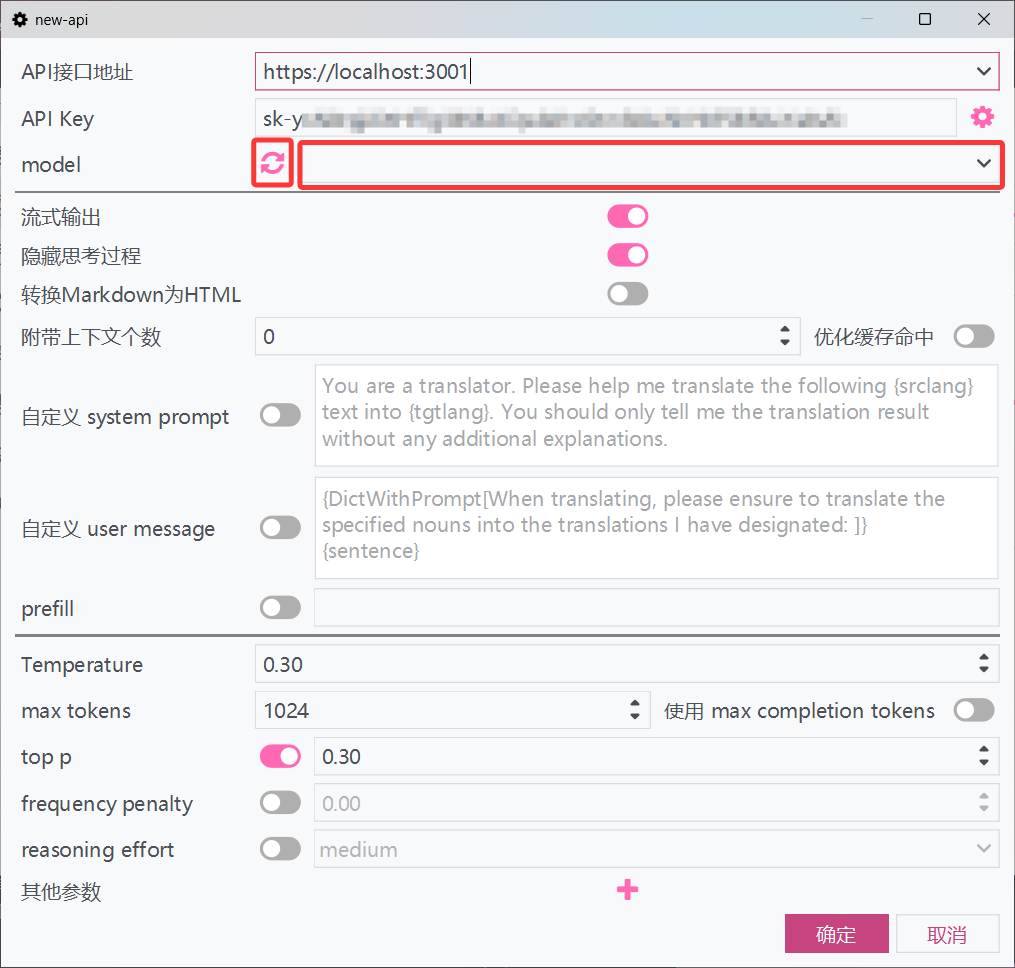
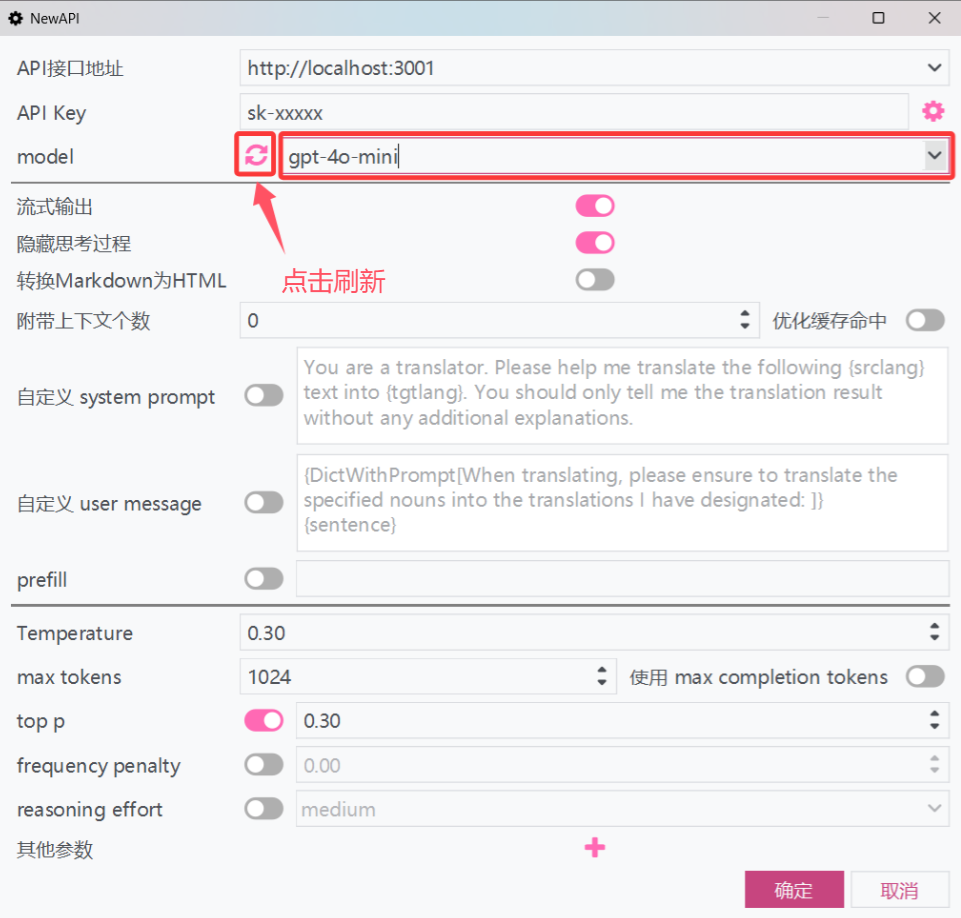
Click the refresh button next to the model dropdown to fetch the list of models from the 88API platform. Select or enter a model name, then click OK to save.
-
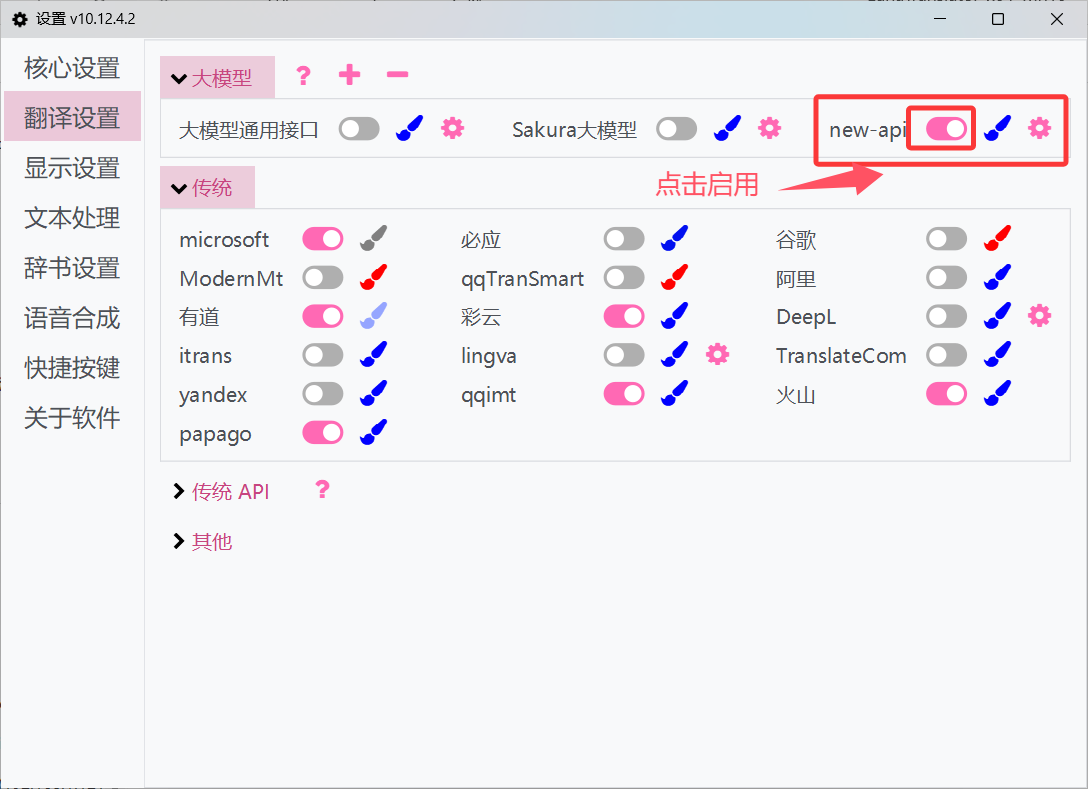
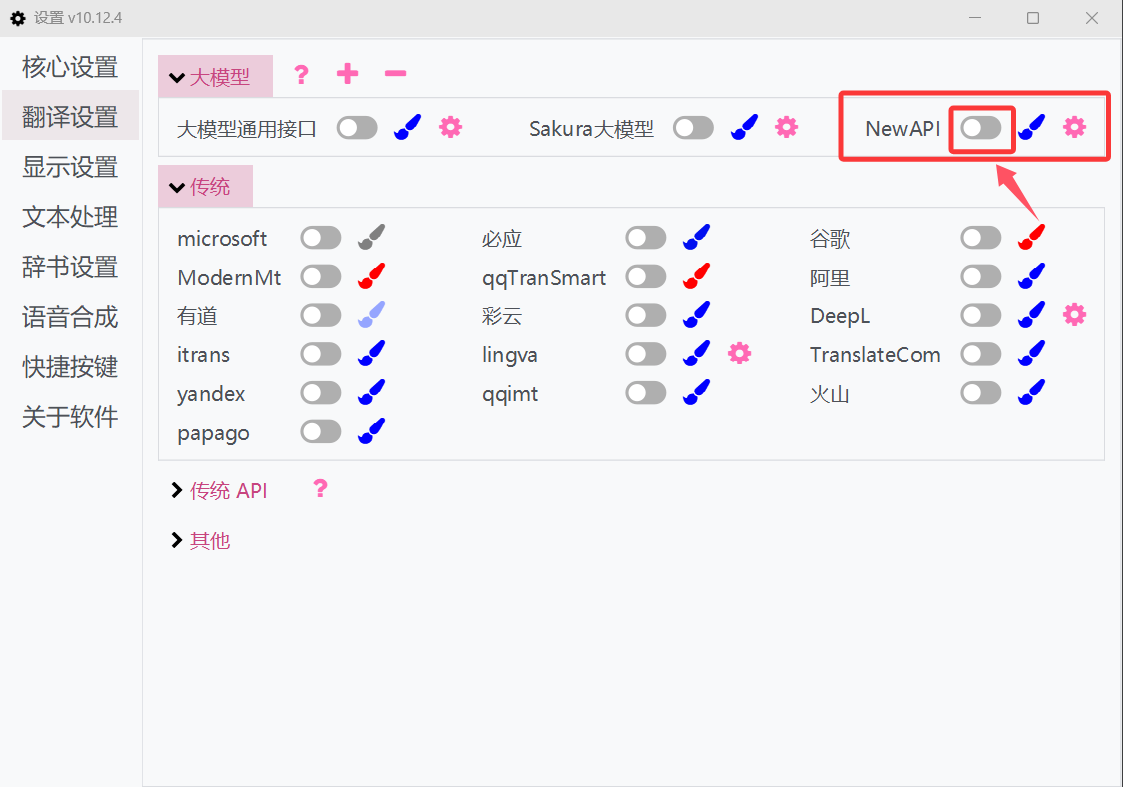
Check the toggle switch next to the new_api large model configuration. If it's off, turn it on to start using the API.
Manual Configuration
-
In
88API->CONSOLE->Token Managementtab to get your API Key.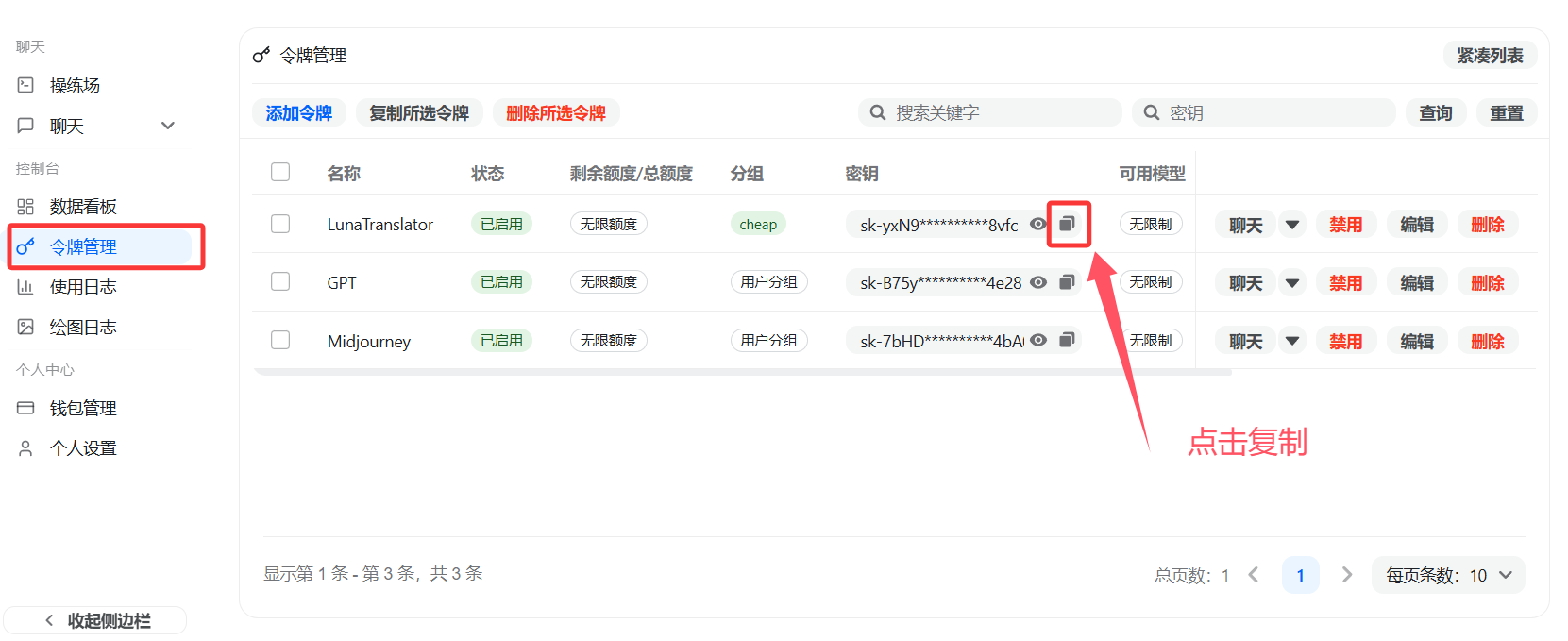
-
In
LunaTranslator->Settings->Translation Settings->Large Language Modeland click "Add".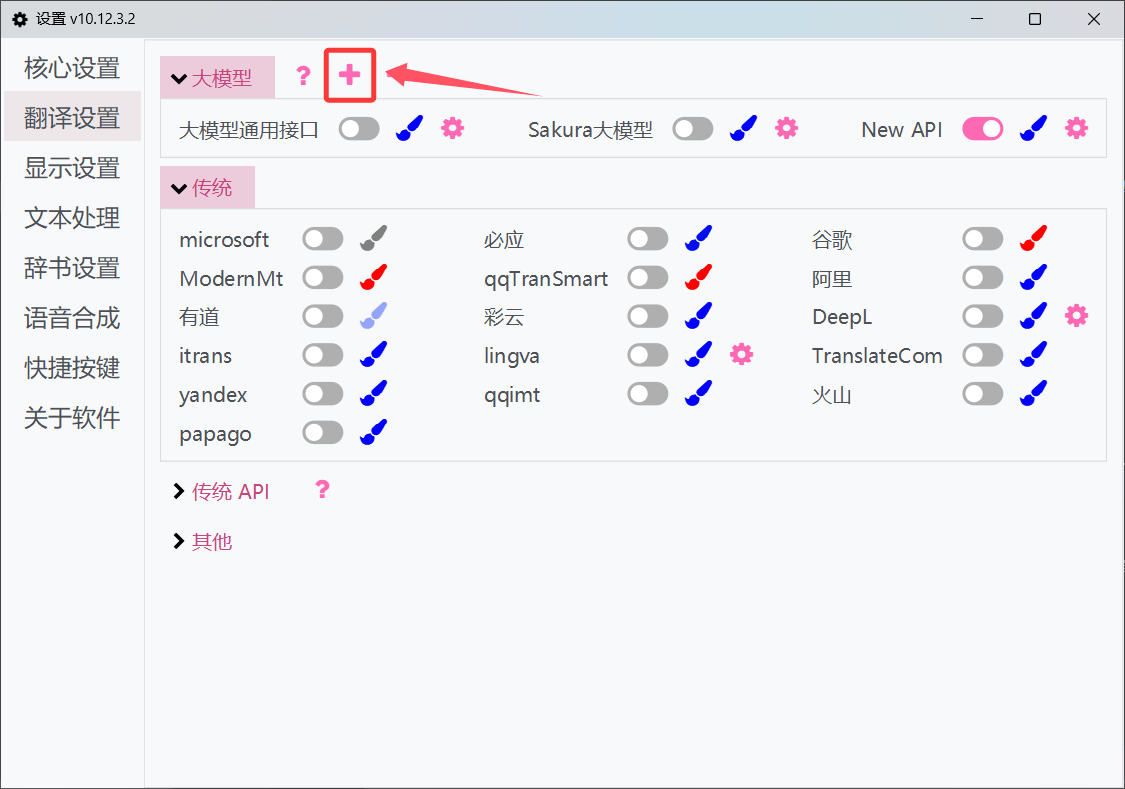
-
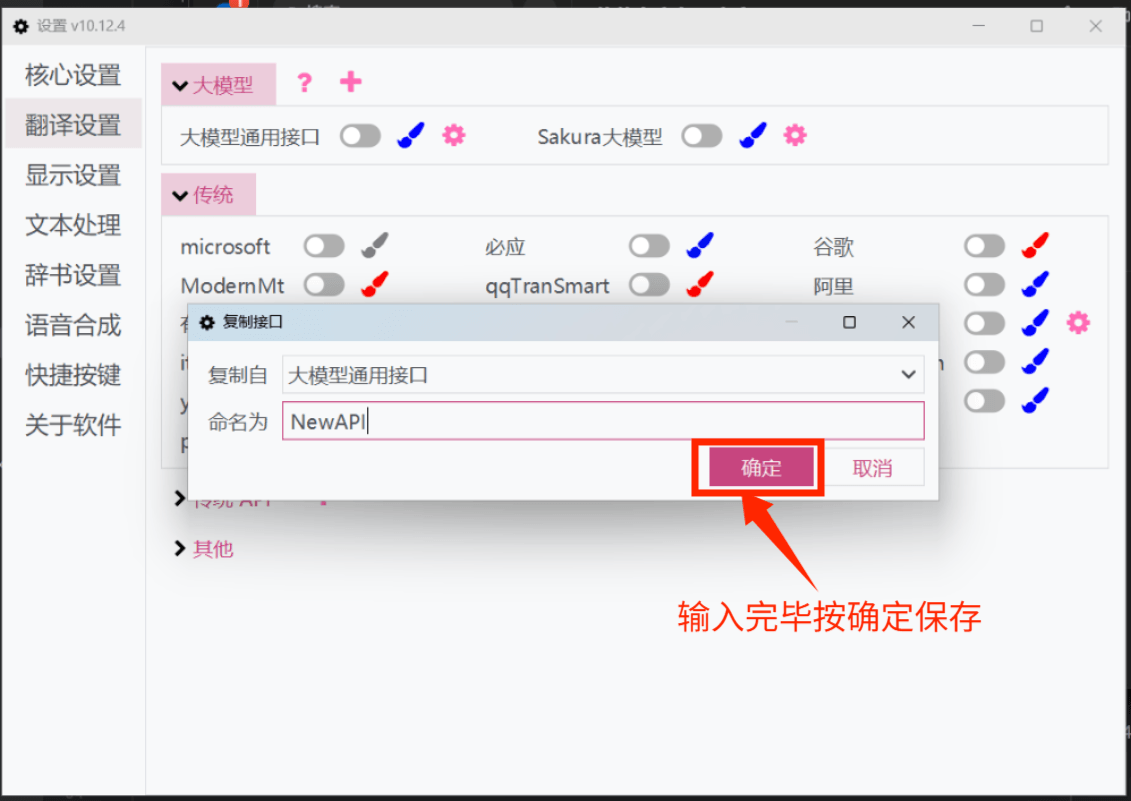
Copy the Generic Large Model API template to create a new API configuration.
-
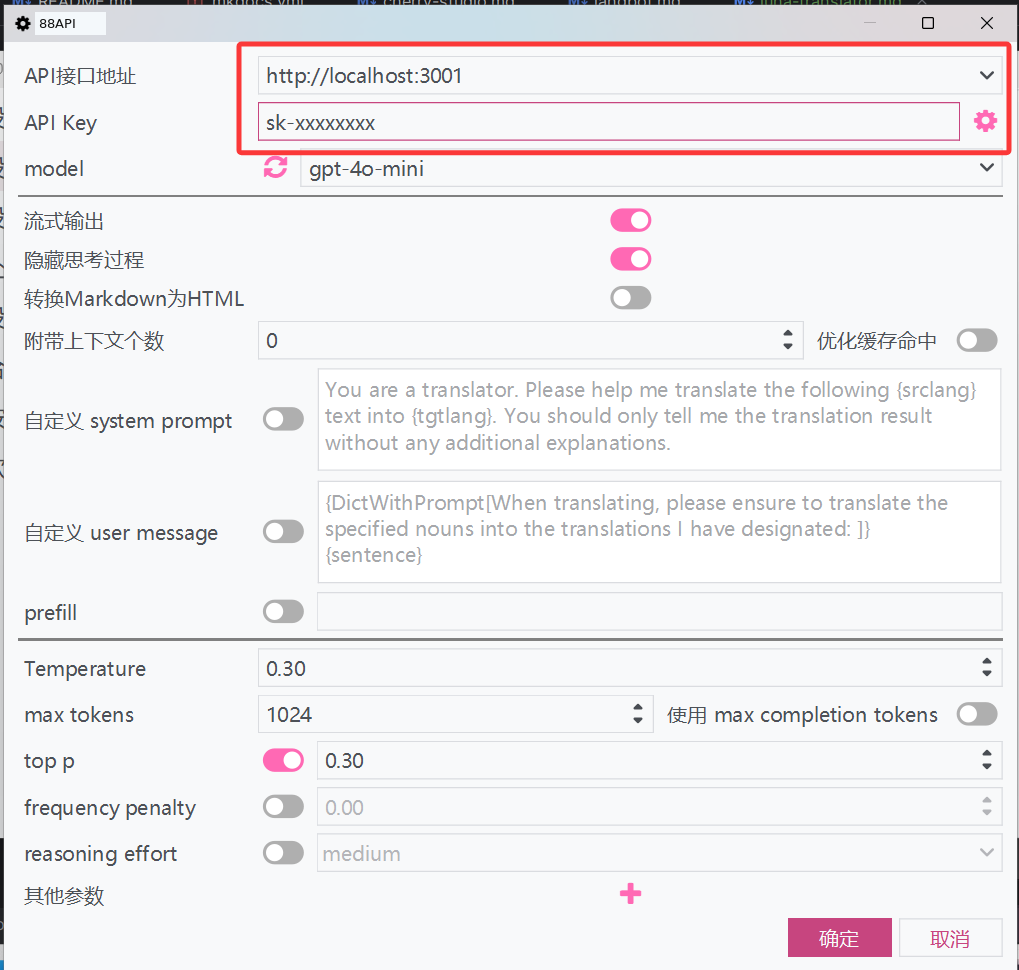
In the 88API configuration window, fill in your API Address and API Key.
-
Click the refresh button next to the model dropdown to fetch the list of models from the 88API platform. Select or enter a model name, then click OK to save.
-
Click the toggle button next to 88API to enable the API and start using it.
For more usage details, please refer to the official LunaTranslator documentation: LunaTranslator Docs - Large Model Translation API